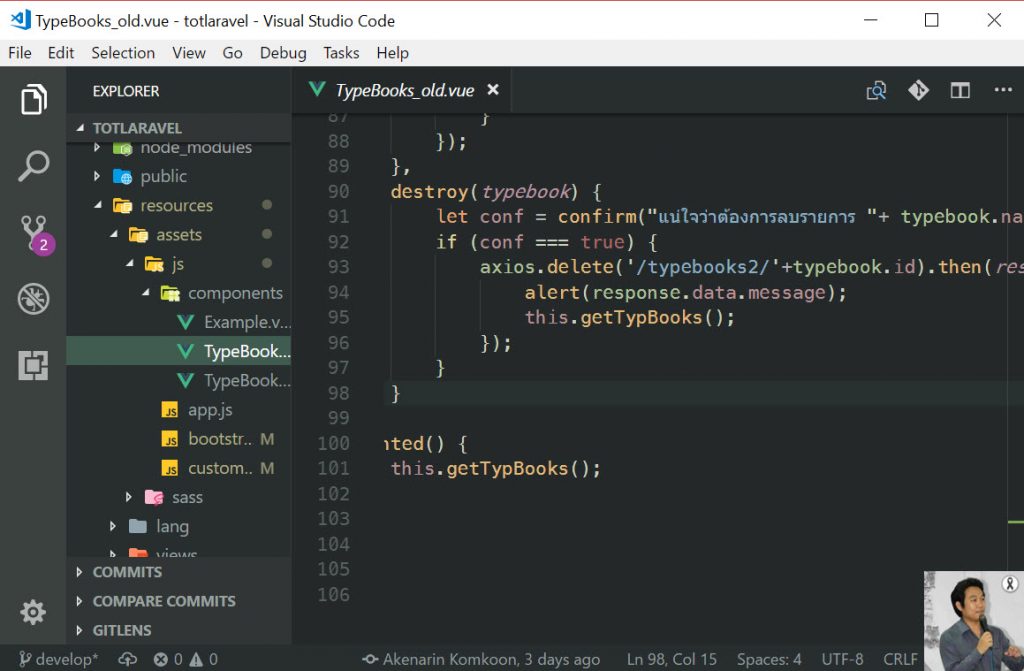
สรุป 20 เทคนิคการใช้งาน Visual Studio Code (Editor) ที่น่าสนใจสำหรับมือใหม่ครับ
—————————-
.
1. Ctrl+P เปิดไฟล์อย่างรวดเร็ว โดยการพิมพ์ชื่อไฟล์ได้เลย
.
2. Ctrl+Shift+F ค้นหาคำแบบรวดเร็วในไฟล์ต่างๆ
.
3. Ctrl+Shift+P
แสดงชุดคำสั่งต่างๆ เช่น ค้นหาการตั้งค่าของ edtior ลองพิมพ์ color theme เพื่อเปลี่ยน theme ของ editor
.
4. ลองใช้ฟอนต์ Menlo-Regular (สวยดี) ติดตั้งลง windows ก่อน แล้วตั้งค่าที่ User Settings ดังนี้
“editor.fontFamily”: “‘Menlo Regular’, Consolas, ‘Courier New’, monospace”,
.
5. Ctrl+B เปิด-ปิด Sidebar
.
6. ซ่อน แถบ Open Editors ใน EXPLORER ตั้งค่าที่ User Settings ดังนี้
“explorer.openEditors.visible”: 0,
.
7. ซ่อน mini map ด้านขวา จะได้ดูสะอาดๆ ตั้งค่าที่ User Settings ดังนี้
“editor.minimap.enabled”: false,
.
8. สำหรับคนที่เขียน PHP ให้ติดตั้ง extensions phpintelephense และ php debug
.
9. ลองติดตั้ง extension ชื่อว่า snippet creator ไว้สร้าง snippet ใช้เองได้
.
10. หากพิมพ์โค้ดแล้ว เวลากด tab ต้องการใช้งาน snippet ด้วย ตั้งค่าที่ User Settings ดังนี้
“editor.tabCompletion”: true,
.
11. หากต้องการใช้ terminal เป็น git แทน powershell หรือ cmd ก็ตั้งค่าที่ User Settings ดังนี้
“terminal.integrated.shell.windows”: “C:\\Program Files\\Git\\bin\\bash.exe”,
“terminal.integrated.shellArgs.windows”: [
“-l”,
“-i”
]
.
12. ใช้ Ctrl+K เพื่อเคลียร์ข้อความใน terminal
.
13. จัดรูปแบบโค้ด ใช้ Shift+Alt+F
.
14. หากต้องการจัดรูปแบบโค้ดตอนบันทึกไฟล์ทุกครั้งก็ให้ตั้งค่า User Settings ดังนี้
“editor.formatOnSave”: true
.
15. สำหรับคนที่เขียน Angular ติดตั้ง extension ชื่อว่า Angular Essentials ได้เลย ของคุณ john papa
.
16. สำหรับคนที่เขียน Vue.js ก็ใช้ extension ชื่อว่า Vetur
.
17. สำหรับคนที่ใช้ Git แนะนำ extensions ชื่อว่า Git History และ GitLens ครับ
.
18. กด Alt ค้างไว้แล้วคลิกเมาส์ที่บรรทัดนั้นๆ หากต้องการใช้ multi-cursor
.
19. หากใครใช้ Sublime Text ก็ให้ติดตั้ง extension ชื่อว่า Sublime Text Keymap เพื่อใช้ keyboard shortcuts ที่คุ้นเคยได้
.
20. หากต้องการแก้ไข keyboard shortcuts ให้ Ctrl+Shift+P แล้วพิมพ์ Open Keyboard Shortcuts เพื่อแก้ไข shortcuts ต่างๆตามต้องการ
เว็บไซต์หลัก: https://goo.gl/cqbNhq
หากสนใจ shortcuts ต่างๆ ดูเพิ่มได้ที่ : https://goo.gl/ziLhkA
โค้ชเอก
Coding Mentor
Category: Editor